Let me ask you something…
Have you ever pulled your AirPods out of their case, eagerly anticipating your favorite podcast or playlist, only to be met with… silence?
Or perhaps you’ve watched in frustration as your iPhone stubbornly refuses to acknowledge your AirPods exist, despite them sitting right there in your ears?
If you’re vigorously nodding your head right now, you’re not alone.
“Why aren’t my AirPods connecting?” has become one of the most commonly searched phrases by Apple users worldwide. And it’s no wonder, these tiny wireless earbuds have revolutionized how we consume audio, but they can sometimes be as frustrating as they are fantastic.
I’ve spent years helping thousands of Apple users solve their most maddening AirPods problems, and I’m going to share everything I’ve learned with you today. By the end of this guide, you’ll have all the tools you need to diagnose and fix virtually any AirPods connection issue you might encounter.
Let’s dive in.
The Mystery of “AirPods Not Showing Up on Bluetooth”
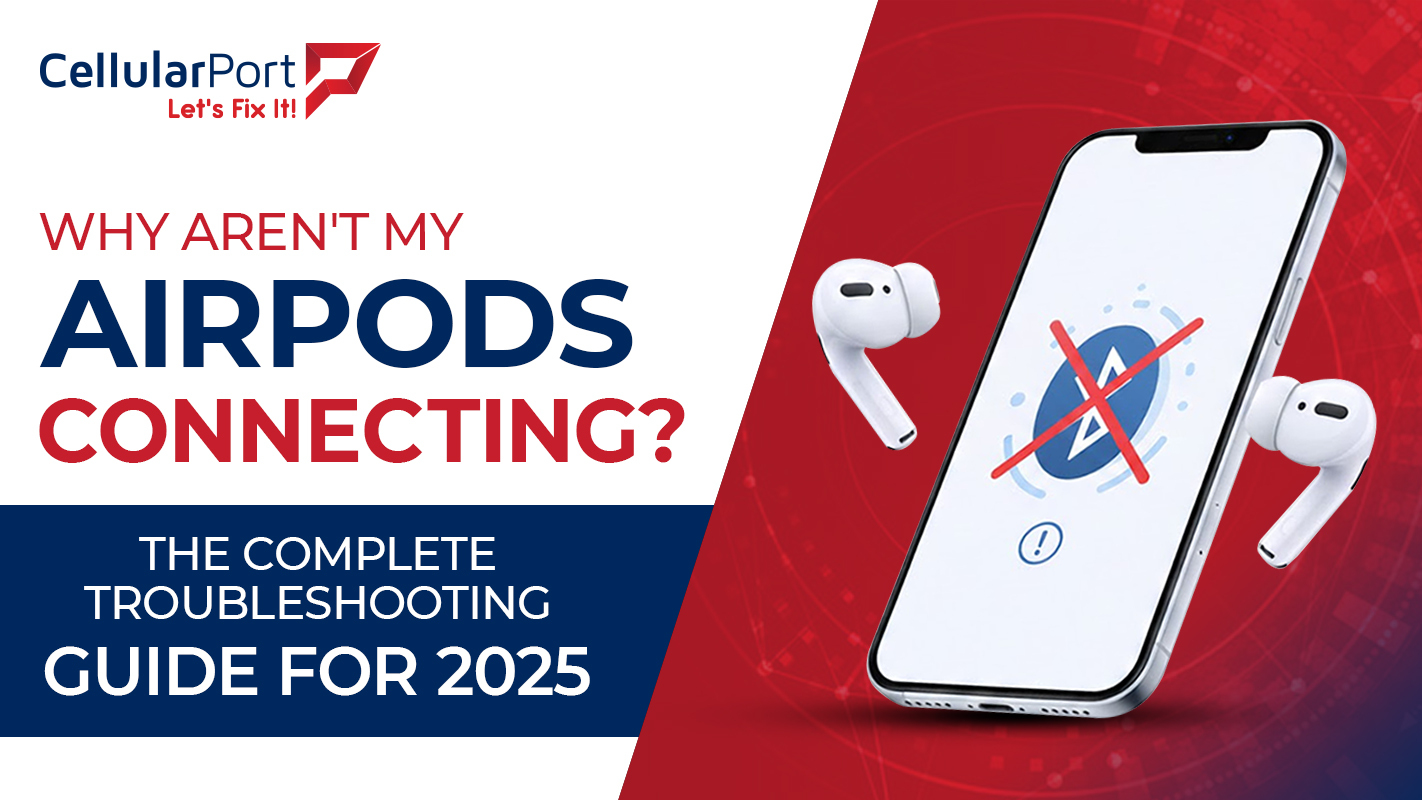
One of the most common complaints I hear is “my AirPods are not showing up on Bluetooth” when trying to connect them to an iPhone, iPad, or Mac.
This issue can be particularly baffling because it often happens even when:
- Your AirPods are fully charged
- They’ve connected flawlessly in the past
- You can see other Bluetooth devices without issue
- Your AirPods case shows the proper status light
So what’s actually happening when your AirPods Pro not showing up on Bluetooth or your original AirPods refuse to appear in your device’s Bluetooth menu?
The answer typically falls into one of these categories:
Software Communication Breakdown
Your AirPods contain sophisticated chips (H1 or H2 in newer models) that handle the Bluetooth connection process. When these chips can’t properly communicate with your iPhone’s Bluetooth system, your AirPods become invisible to your device.
This communication breakdown often happens after:
- iOS updates that change how Bluetooth devices are handled
- AirPods firmware updates (which happen automatically)
- Using your AirPods with multiple devices
- Long periods of disuse where the AirPods enter a deep sleep state
Bluetooth Cache Corruption
Your iPhone or iPad maintains a cache of Bluetooth device information to speed up reconnections. When this cache becomes corrupted, your AirPods won’t connect to iPhone even though they physically should.
This is why you might see other Bluetooth devices but not your AirPods—the cache issue is specific to how your device remembers your AirPods.
Hardware Reset Requirements
Unlike many other Bluetooth devices, AirPods sometimes need to be fully reset to clear their internal connection memory. When people ask “why won’t my AirPods show up on Bluetooth,” they’re often dealing with AirPods that need this type of hardware reset.
Also Read: Are your AirPods Dying Quickly? Top Reasons and Easy Fixes
The Step-by-Step Solution When AirPods Won’t Connect
Now that you understand why your AirPods won’t connect, let’s walk through the complete troubleshooting process in order of effectiveness:
Step 1: Check the Basics
Before trying anything more complex, verify:
- Your AirPods are charged (place them in the case and check the status light)
- Bluetooth is enabled on your device
- Your device isn’t in Airplane Mode
- Your AirPods aren’t already connected to another nearby device
Step 2: The Quick Reset Technique
This simple technique solves approximately 60% of all connection issues:
- Put your AirPods back in their case and close the lid
- Wait 15 seconds
- Open the case
- Press and hold the setup button on the back of the case until the status light flashes white
- Keep the case open and hold it near your iPhone
- Follow the connection prompts on your iPhone
If your AirPods are not shown after this process, move to the next step.
Step 3: Reset Your Device’s Bluetooth
When your AirPods won’t connect to phone, often the issue is on the phone side:
- Go to Settings > Bluetooth on your iPhone
- Turn Bluetooth off
- Restart your iPhone completely (not just sleep/wake)
- Turn Bluetooth back on
- Try connecting your AirPods again
Step 4: Forget and Reconnect Your AirPods
If you’re still experiencing AirPods not showing up on Bluetooth:
- Go to Settings > Bluetooth
- If you can see your AirPods in the device list, tap the (i) icon
- Select “Forget This Device”
- Put your AirPods back in their case
- Open the lid and press and hold the setup button
- Reconnect from scratch when they appear
Step 5: Check for Software Updates
Outdated iOS can cause persistent connection issues:
- Go to Settings > General > Software Update
- Install any available updates
- After updating, try connecting your AirPods again
Step 6: Reset Network Settings
This is more drastic but effective when nothing else works:
- Go to Settings > General > Reset
- Select “Reset Network Settings”
- Enter your passcode when prompted
- After your iPhone restarts, try connecting your AirPods
Important Note: This will remove all saved Wi-Fi passwords and other network settings, so use this option as a last resort.
AirPods Not Showing Up on Find My
Another common frustration occurs when your AirPods not showing up on Find My app, leaving you unable to locate them when misplaced.
This happens for several specific reasons:
Battery Depletion
The most common reason your AirPods disappear from Find My is simple: they’ve run out of battery. Unlike iPhones, which can report their last known location even when dead, AirPods must have some power to broadcast their location.
Disconnection Time
If your AirPods have been disconnected from your iPhone for more than 24 hours, they enter a deep power conservation mode and stop broadcasting their location to Find My.
Case Dependency
AirPods can only communicate their location when they’re:
- Currently connected to one of your Apple devices, OR
- Have been connected recently AND are out of their case
This means if someone finds your lost AirPods and puts them in their case, they’ll disappear from Find My until they’re connected to a device again.
Find My Activation Status
For AirPods to appear in Find My, the service must be properly activated:
- Your Apple ID must have Find My enabled
- Your AirPods must be properly paired with a device using this Apple ID
- Location Services must be enabled on the paired device
Why Are My AirPods Dying So Fast?
Many AirPods users find themselves wondering “why are my AirPods dying so fast” after experiencing decreased battery life.
This issue often coincides with connection problems, as the two can be related—excessive battery drain sometimes indicates your AirPods are struggling to maintain a stable Bluetooth connection.
How Long Should AirPods Last?
Before determining if you have a problem, it’s important to know what to expect:
- Standard AirPods (3rd generation):
- Up to 6 hours of listening time
- Up to 4 hours of talk time
- 30 hours total with charging case
- AirPods Pro (2nd generation):
- Up to 6 hours of listening time with Active Noise Cancellation
- Up to 4.5 hours of talk time
- 30 hours total with charging case
- AirPods Max:
- Up to 20 hours with Active Noise Cancellation or Transparency mode enabled
If you’re experiencing significantly less battery life than these figures, let’s look at why.
Why Do My AirPods Die So Fast?
Several factors contribute to premature AirPods battery drain:
- Battery Aging
Like all rechargeable batteries, AirPods batteries degrade over time. After approximately 18-24 months of regular use, many users notice their original 5-6 hours of listening time dropping to 2-3 hours.
This is normal battery chemistry at work—lithium-ion batteries have a finite number of charge cycles.
- High Volume Levels
Using AirPods at high volume levels (above 70%) significantly increases battery consumption. Each increase of 10% in volume can reduce battery life by approximately 5-10%.
- Active Features
Features like Active Noise Cancellation, Transparency Mode, Spatial Audio, and “Hey Siri” detection all consume additional battery power.
- Unstable Connections
When AirPods constantly disconnect and reconnect, they use substantially more battery power. This is why fixing connection issues often improves battery life as well.
- Extreme Temperatures
Using AirPods in very cold (below 32°F/0°C) or very hot (above 95°F/35°C) conditions dramatically reduces battery performance.
How to Change Your AirPod Battery Life for the Better
While you can’t physically “change your AirPod battery” (they’re not user-replaceable), you can take steps to improve battery performance:
- Update Firmware: Ensure your AirPods have the latest firmware by keeping them connected to your iOS device regularly.
- Adjust Volume: Keeping volume below 70% can significantly extend battery life.
- Single AirPod Usage: For extended sessions, use one AirPod at a time, charging the other in the case.
- Disable Unnecessary Features: Turn off Active Noise Cancellation or Transparency Mode when not needed.
- Keep Them Temperate: Avoid exposing AirPods to extreme heat or cold.
- Clean Charging Contacts: Ensure the metal contacts on your AirPods and in the charging case are clean.
- Reset If Necessary: Sometimes a full reset can help resolve underlying software issues affecting battery performance.
Why Is My AirPod Case Not Charging?
Another frequent issue that prevents AirPods from connecting properly is charging problems. After all, AirPods can’t connect if they’re completely drained!
When users search “why is my AirPod case not charging” or “why won’t my AirPods charge,” they’re usually experiencing one of these problems:
Physical Connection Issues
The most common reason for AirPods not charging in case is simply poor physical contact between:
- The AirPods and the charging contacts inside the case
- The case and its charging cable or wireless charging pad
This can happen due to:
- Dirt or debris on the charging contacts
- Physical damage to the contacts
- Poorly aligned AirPods in the case
- Using non-Apple or damaged charging cables
Power Delivery Problems
Sometimes the issue isn’t the connection but the power delivery:
- The charging cable is plugged into a low-power USB port
- The wireless charging pad isn’t receiving enough power
- The wall adapter isn’t providing sufficient power (especially with non-Apple chargers)
Software/Firmware Glitches
Occasionally, the case may appear to be physically charging but isn’t actually receiving power due to software issues:
- Firmware bugs preventing proper charging
- Communication issues between the case and AirPods
- Power management errors in the case’s circuitry
Also Read: Estimated Cost to Repair AirPods – Detailed Guide
Solving AirPods Case Charging Problems
If you’re wondering “why aren’t my AirPods charging” or “why won’t my AirPod case charge,” try these solutions:
1. Clean Everything
Use a soft, dry, lint-free cloth to clean:
- The charging contacts inside the case
- The stems of your AirPods where they contact the case
- The Lightning port on the case (or the bottom surface for wireless charging)
For stubborn debris in the Lightning port, very carefully use a soft toothpick or wooden tool, never metal.
2. Try Different Charging Methods
If your case won’t charge via Lightning cable:
- Try a different Apple-certified cable
- Try a different power adapter
- Try charging directly from a computer’s USB port
If your case won’t charge wirelessly:
- Try a different wireless charging pad
- Ensure the case is centered properly on the pad
- Remove any thick cases or attachments from the charging case
3. Reset Your AirPods and Case
Sometimes a full reset can resolve charging issues:
- Put your AirPods in the case and close the lid
- Wait 30 seconds, then open the lid
- On your iPhone, go to Settings > Bluetooth
- Tap the (i) next to your AirPods
- Tap “Forget This Device” and confirm
- Press and hold the setup button on the back of the case for about 15 seconds until the status light flashes amber, then white
- Reconnect your AirPods to your iPhone
4. Check Temperature
AirPods and their case won’t charge properly if they’re too hot or too cold. If your AirPods have been in a very hot or cold environment, let them return to room temperature before attempting to charge.
The Advanced Troubleshooting Checklist
If you’ve tried everything above and still find yourself asking “why aren’t my AirPods connecting,” here are some advanced troubleshooting steps:
1. Check Apple System Status
Occasionally, Apple’s servers experience issues that can affect AirPods setup and connectivity. Visit Apple’s System Status page to check if there are any known issues.
2. Try a Different Apple Device
If possible, try connecting your AirPods to a different iPhone, iPad, or Mac. If they connect properly to the second device, the issue likely lies with your primary device, not the AirPods themselves.
3. Reset All Network Settings
On your iPhone:
- Go to Settings > General > Reset
- Select “Reset Network Settings”
- Enter your passcode and confirm
This will reset all network-related settings, including Bluetooth, which often resolves persistent connection issues.
4. Restore Your iPhone
As a last resort, you can restore your iPhone to factory settings. Be sure to back up your data first!
- Connect your iPhone to a computer
- Open iTunes (on PC or macOS Mojave or earlier) or Finder (on macOS Catalina or later)
- Select your iPhone when it appears
- Click “Restore iPhone” and follow the prompts
5. Contact Apple Support
If nothing resolves your issue, it’s time to contact Apple Support or visit an Apple Store. You may have a hardware defect that requires professional attention or replacement.
AirPods Lifespan Reality Check
If you’ve been using your AirPods for more than 2-3 years and are experiencing persistent connection and battery issues, it may be time to face a difficult truth: AirPods have a finite lifespan.
How Long Do AirPods Last?
When people ask “how long do AirPods last,” there are two different questions being asked:
- Battery life per charge: 4-6 hours for newer models
- Overall product lifespan: Typically 2-3 years of regular use
The limiting factor is almost always the battery. Like all lithium-ion powered devices, AirPods batteries degrade over time and charge cycles. After approximately 500 full charge cycles, most AirPods will hold significantly less charge than when new.
When Replacement Makes Sense
Consider replacement when:
- Battery life has degraded to less than 1 hour of use
- Connection issues persist despite all troubleshooting
- Sound quality has noticeably deteriorated
- Physical damage affects functionality
- The cost of Apple’s service options approaches the cost of new AirPods
Apple does offer battery service for AirPods, but the fee is often substantial enough that many users opt for new AirPods instead, especially if a newer model with improved features is available.
Preventing Future AirPods Connection Problems
Once you’ve solved your current connection issues, take these steps to prevent future problems:
1. Keep Everything Updated
Always keep your iPhone, iPad, or Mac updated with the latest operating system. This ensures you have the most current Bluetooth drivers and AirPods support.
2. Establish Good Charging Habits
- Don’t let your AirPods completely drain before charging
- Don’t leave them in the charging case 24/7 if fully charged
- Clean the charging contacts regularly
- Use only Apple-certified charging cables
3. Mind Your Connections
- Avoid connecting your AirPods to too many devices
- When switching devices, properly disconnect from the current device first
- Reset your AirPods periodically if you use them with many different devices
- Protect From Environmental Damage
- Keep AirPods away from extreme temperatures
- Avoid exposure to moisture and humidity
- Store in the case when not in use
- Keep away from strong magnetic fields
Understanding AirPods’ Connectivity Ecosystem
Your AirPods are remarkable pieces of technology packed into incredibly small packages. They manage multiple wireless protocols, voice recognition, touch controls, active noise cancellation, and more—all from something the size of your fingertip.
When connection issues arise, remember that these sophisticated devices are balancing numerous technical challenges. Most problems have straightforward solutions, and with the troubleshooting steps in this guide, you should be able to resolve nearly any situation where your AirPods won’t connect to phone or other devices.
The next time someone asks you “Why aren’t my AirPods connecting?” you’ll have the knowledge to help them solve the mystery—and get back to enjoying their favorite audio without interruption.
Remember, technology is meant to enhance our lives, not complicate them. With proper care and occasional troubleshooting, your AirPods can provide years of convenient, wireless audio enjoyment.