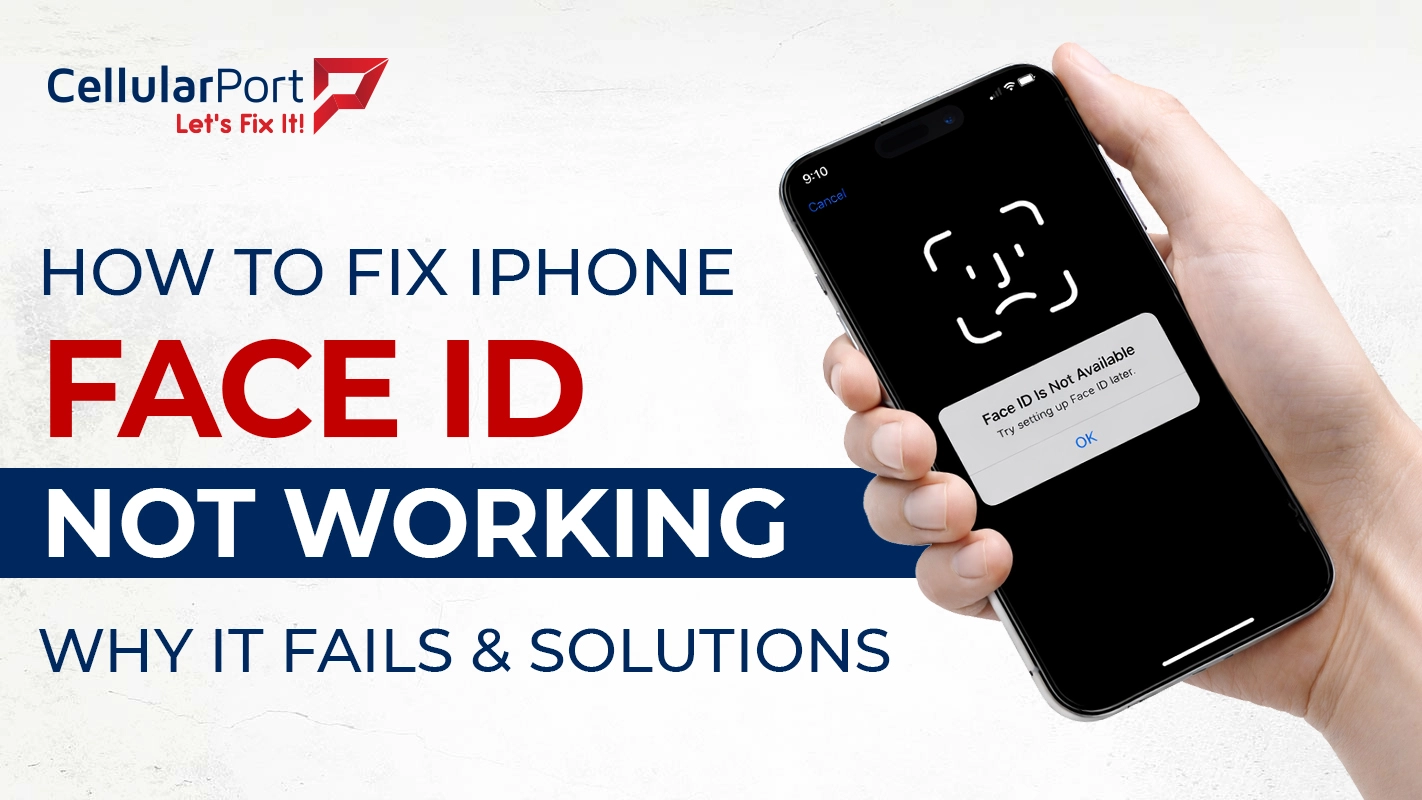
Face ID is one of Apple’s most relied-upon features, but when it starts acting up it feels instantly disruptive, like for unlocking your phone, and even for authorizing payments. Knowing how to fix iPhone Face ID not working really matters more than most people think, because the cause can be something small, like a smudged camera, but it can also get serious as a hardware mismatch after a screen replacement. This guide walks through every known reason and the clearest route to fix each one. It starts with the quickest wins, then moves into deeper software steps, and finally goes toward hardware-level solutions for how to fix iPhone Face ID not working when nothing short of hardware attention will do.
Why Is My Face ID Not Working
Before jumping to fixes, pinning down why is my Face ID not working in your specific situation really saves time. Most failures fall into one of these categories, and honestly, it’s usually not as mysterious as it sounds:
Dirty TrueDepth Camera
Oil, dust, or a thick screen protector blocking the notch is the most common and easiest to fix.
iOS Software Glitch
An update or corrupt preference file can disable Face ID recognition without any hardware issue.
Physical TrueDepth Damage
A drop or water exposure can damage the infrared dot projector or flood illuminator, hardware only.
Extreme Temperature
Very cold or hot conditions can temporarily impair the infrared sensors, usually it resolves itself after a bit.
Also Read: iPhone 15 Overheating Issues – Top 10 Fast Fixes That Work
How to fix iPhone Face ID not working, step by step
Work through these in order. Each step rules out one layer of the problem, so you’ll know exactly what’s causing face identification not working by the time you’re done:
Clean the TrueDepth Camera
Try wiping the notch area (or the Dynamic Island cutout on iPhone 14 Pro+) with a dry microfiber cloth. Even a light film of oil can scatter infrared dots enough to cause recognition to fail.
Remove your Screen Protector Temporarily
Thick or misaligned protectors block the infrared sensors. Test Face ID without the protector, if it works, the protector is the issue.
Check Face ID Settings
Go to Settings → Face ID & Passcode. Hit confirm that Face ID is on for the exact use you mean (iPhone Unlock, App Store, Wallet), not just general “yes” or whatever. Also take a quick look at “Require Attention for Face ID” because it can mess with unlock, especially if you’re wearing sunglasses, or you’re turning your face at an angle, sometimes it just wont pass.
Force Restart your iPhone
Volume Up → Volume Down → hold Side button until Apple logo. This clears temporary software states causingface id issue detectederrors without touching your data.
Update iOS
Go Settings → General → Software Update. There can be a known glitch from a previous build, like a Face ID regression, and Apple usually patches those types of problems pretty regularly.
If there’s still a persistent “Face ID issue detected” message in Settings even after a reset, that’s basically Apple’s own clear hint the TrueDepth hardware is damaged or not calibrated well, so software fixes, in that case, won’t really do anything.
Face ID Not Working After Screen Replacement
Face ID not working after screen replacement is the most common and also the most misunderstood kind of thing. Apple connects the Face ID calibration info to the original screen serial number, through the Secure Enclave. So, when a third-party shop swaps the display without using Apple’s own proprietary System Configuration tool to move that pairing over, Face ID ends up disabled for good, and honestly there is no software fix that can bring it back. If face ID stopped working on iPhone right after the screen repair, then the repair shop either didn’t transfer the original data, or they used a screen assembly that is not compatible with your device.
|
Situation |
Face ID fixable? |
Fix type |
|---|---|---|
|
Stopped after iOS update |
Usually yes |
Software |
|
Dirty camera / bad protector |
Yes |
Software |
|
After third-party screen repair |
Only with original screen or authorized repair |
Hardware |
|
“Face ID issue detected” message |
No, TrueDepth hardware damaged |
Hardware |
|
After a drop (no screen damage) |
Sometimes, may need TrueDepth repair | Hardware |
Why Can’t I Reset Face ID
Some people notice that the “Reset Face ID” option is greyed out, or that doing the reset doesn’t really work after all. So, the question is, Why can’t I reset Face ID in this situation?
At that point, re-enrollment can’t override some hardware level flag, even if you try a couple times. This is basically the moment where a professional diagnosis becomes the only remaining route, for when face id stopped working on iPhone units and the software layer simply can’t touch the root cause.
Prevention tip: Always use an Apple Authorized Service Provider for screen repairs. It’s the only way to guarantee Face ID data is correctly Transferred and face id not working after screen replacement situations are avoided entirely.
Also Read: iPhone 17 Complete Guide – Apple’s Most Revolutionary Lineup Yet
Common Questions
Q1. How to Fix iPhone Face ID Not Working After an iOS Update?
Force restart first, then head to Settings → Face ID & Passcode → Reset Face ID, and re enroll. If it still acts weird, look for a follow up iOS patch. Apple usually ships fixes for Face ID regressions within days after a troublesome update.
Q2. Why is My Face ID Not Working Even Though Nothing Has Changed?
Over time your look can shift a bit, like new glasses, facial hair, aging, all of that can push you just outside the Face ID recognition envelope. Try resetting, then re enrolling Face ID while you’re in your current appearance. Also, confirm the TrueDepth camera area is clean and not blocked or covered.
Q3. What Does “Face ID issue detected” Mean?
A Face ID issue detected alert in Settings means Apple’s firmware has confirmed a hardware problem with the TrueDepth camera system. Software fixes won’t resolve this, the device needs professional diagnosis and likely TrueDepth component repair or replacement.
Q4. Can Face Identification not Working be Caused by a Screen Protector?
Thick, misaligned, or privacy-tinted screen protectors scatter those infrared dots that the TrueDepth system throws out. Just remove the protector and test Face ID on the bare display, to be sure whether it’s truly the cause or not.
Q5. Is Face ID Not Working After Screen Replacement Always Permanent?
Only if the original calibration data wasn’t transferred. If the repair shop still has the original screen, reinstalling it can restore Face ID. An Apple Authorized repair with the System Configuration tool can also re-pair Face ID data to a new screen on supported models.
Q6. Face ID Stopped Working on iPhone After a Drop, Is It Hardware?
Very likely. The infrared dot projector and flood illuminator are delicate components. Even a drop that leaves no visible screen damage can shift or crack the TrueDepth module internally. If face ID stopped working on iPhone right after impact, professional hardware inspection is the correct next step.
Q7. Why Can’t I Reset Face ID? The Option is Greyed Out?
A reset option that looks greyed out usually means a Screen Time restriction, or an MDM profile is blocking the access, or the Secure Enclave has tagged a hardware fault. First, go to Settings → Screen Time → Content & Privacy Restrictions, and check that. If nothing is configured there, but it’s still greyed out, then it’s likely the hardware acting up.
Face ID Still Not Working?
CellularPort’s certified technicians handle TrueDepth repairs, post-screen-replacement Face ID restoration, and full iPhone diagnostics, with same-day service and a warranty.